Notionとは?開発者向けですか?ごもっともな疑問です。確かに、Notionはこれまで、「開発者ファースト」なプラットフォームであったとは言えません。それが今日変わります。
これからは、開発者自身(そしてコーディングエージェント)の手で、あらゆるデータの同期やエージェントツールの構築が可能になります。これらはすべて、Notionのインフラストラクチャ上で動作します。また、お好みのエージェント(Claude、Codex、Decagon、あるいは自作のエージェントなど)をNotionに組み込んで活用することも可能です。これにより、Notionはあらゆるデータが集約された「ひとつの共有キャンバス」へと進化し、チームとエージェントが力を合わせて働けるようになります。
チームの全エージェントをコーディネートする(アルファ版)
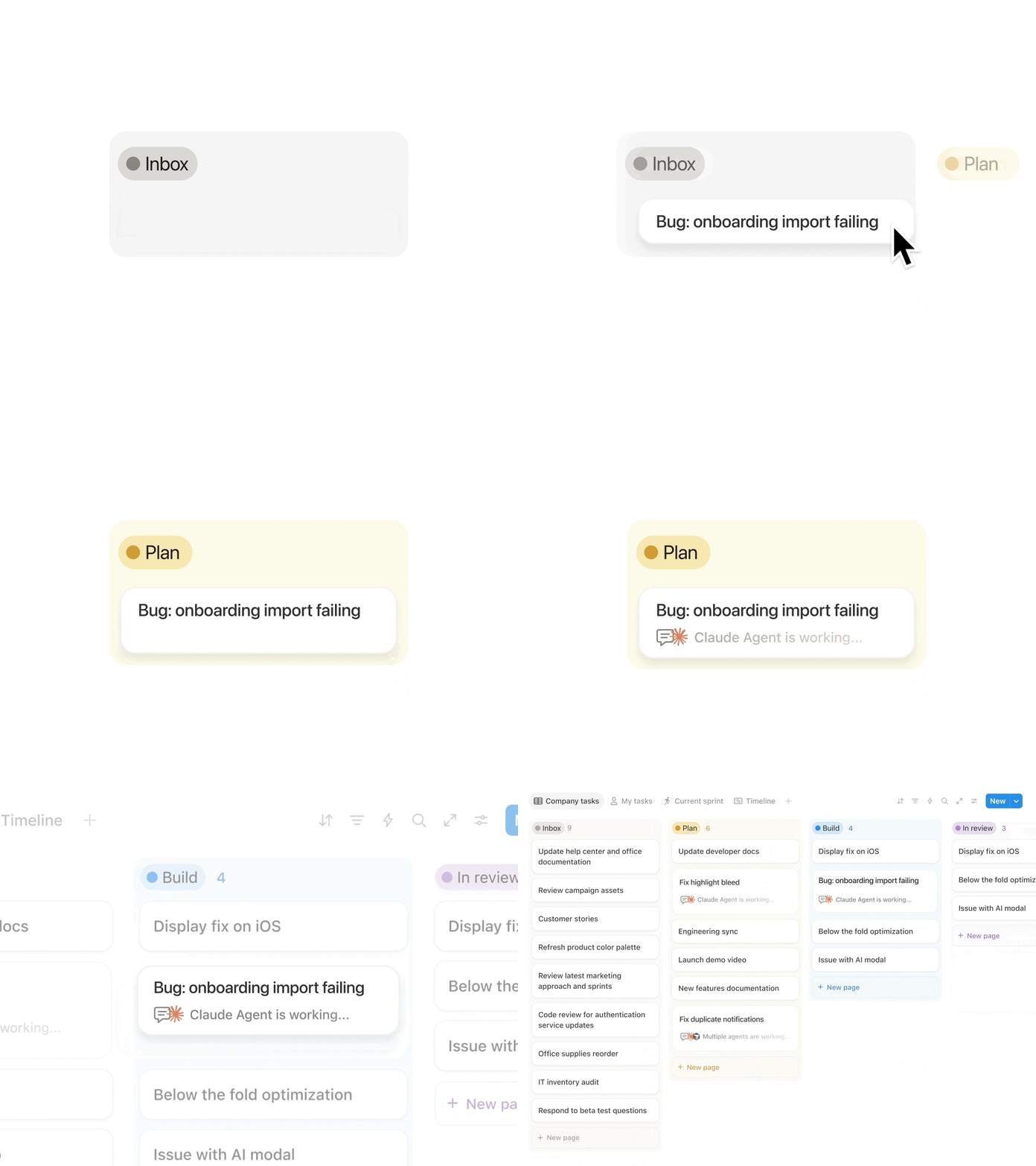
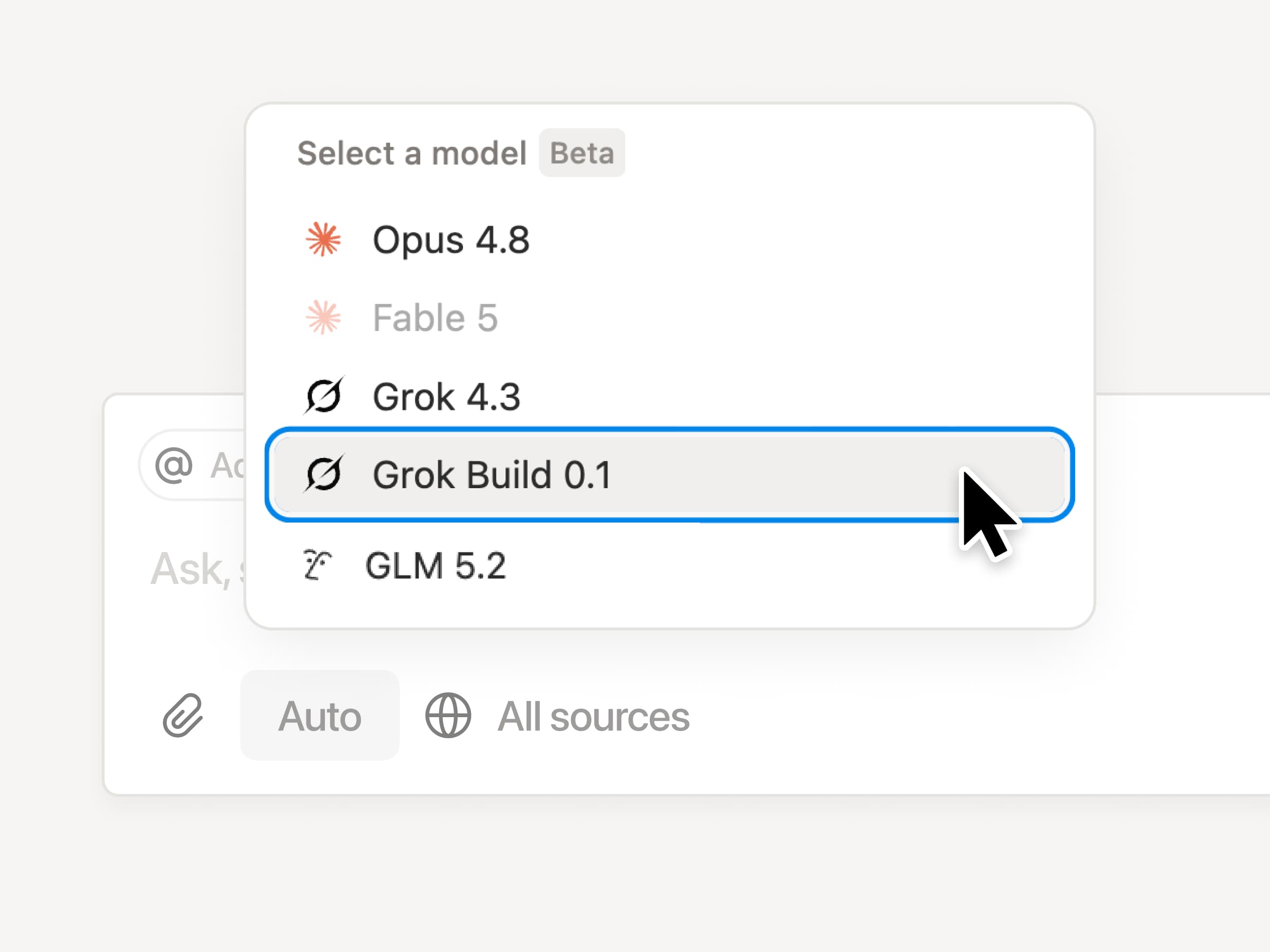
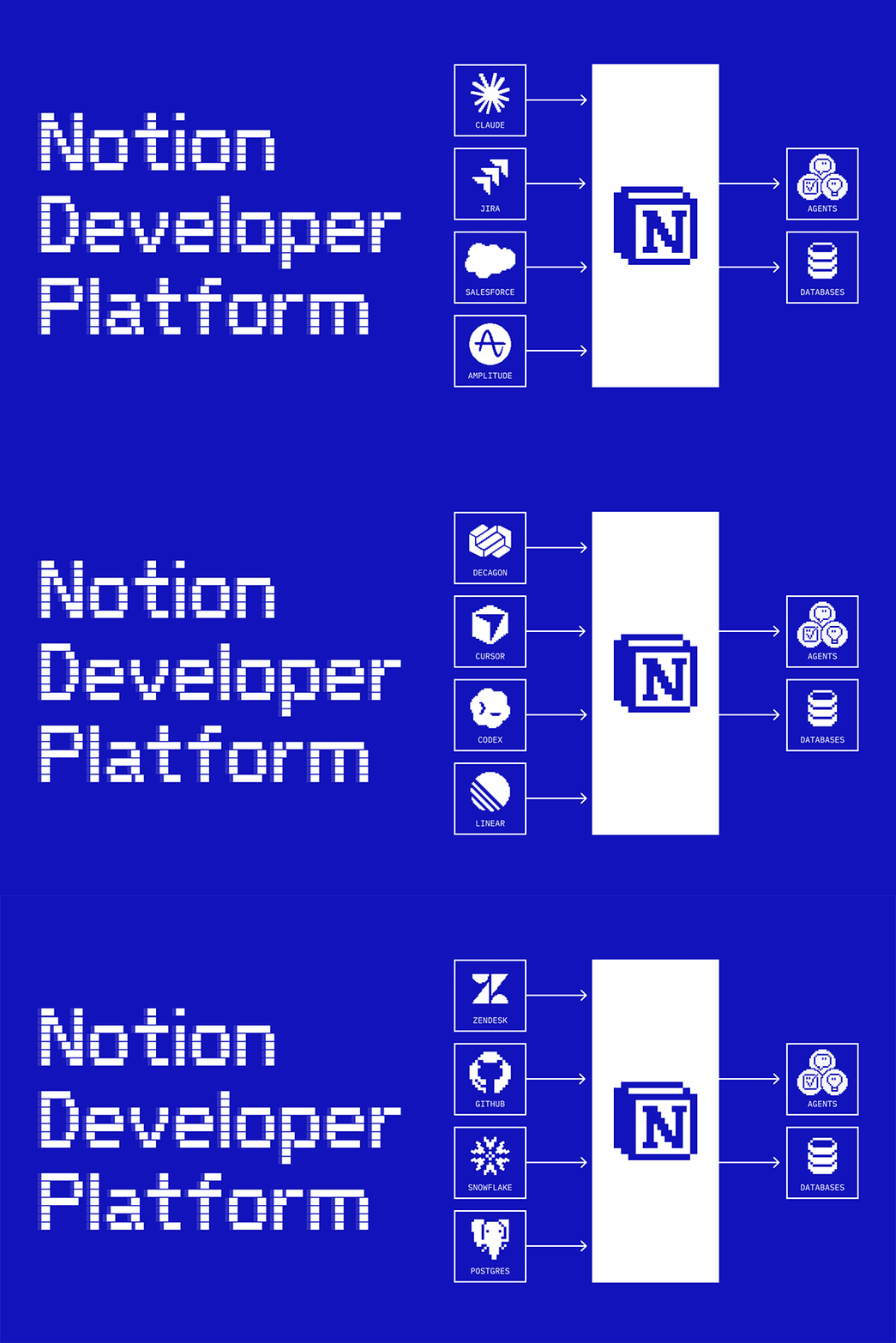
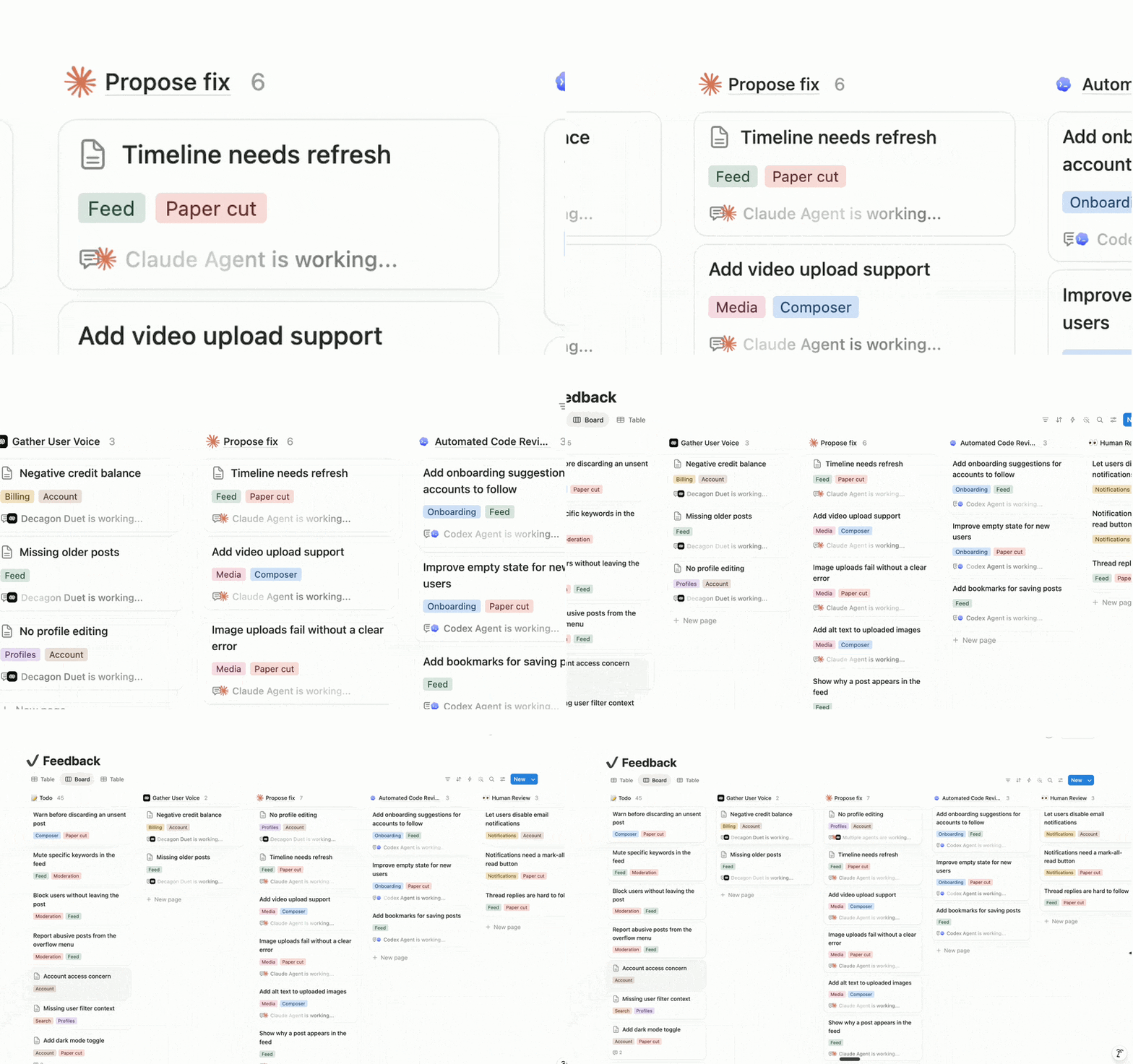
外部エージェントAPIを使えば、お気に入りのエージェントをNotionに導入できます。ご自身でビルドした自作エージェントも、同様に持ち込み可能です。また、ClaudeやCodex、Decagonなどとも提携しているため、これらのエージェントはそのまま利用できます。これからは、Notionがいわゆるオーケストレーションレイヤーとなります。例えば、Decagonのチケットがコーディングエージェントに送られ、エージェントが修正案を提示し、チームの承認を仰ぐといった連携が可能になります。Notionでは、エンジニアに限らず、誰でもエージェントを活用できます。外部エージェントの順番待ちリストに登録する →
Notionは、仕事が生まれ、発想が練られる場所です。だからこそ、私たちはここを「AI層」と位置づけ、エージェントをできる限り実務の近くに配置したいと考えています。
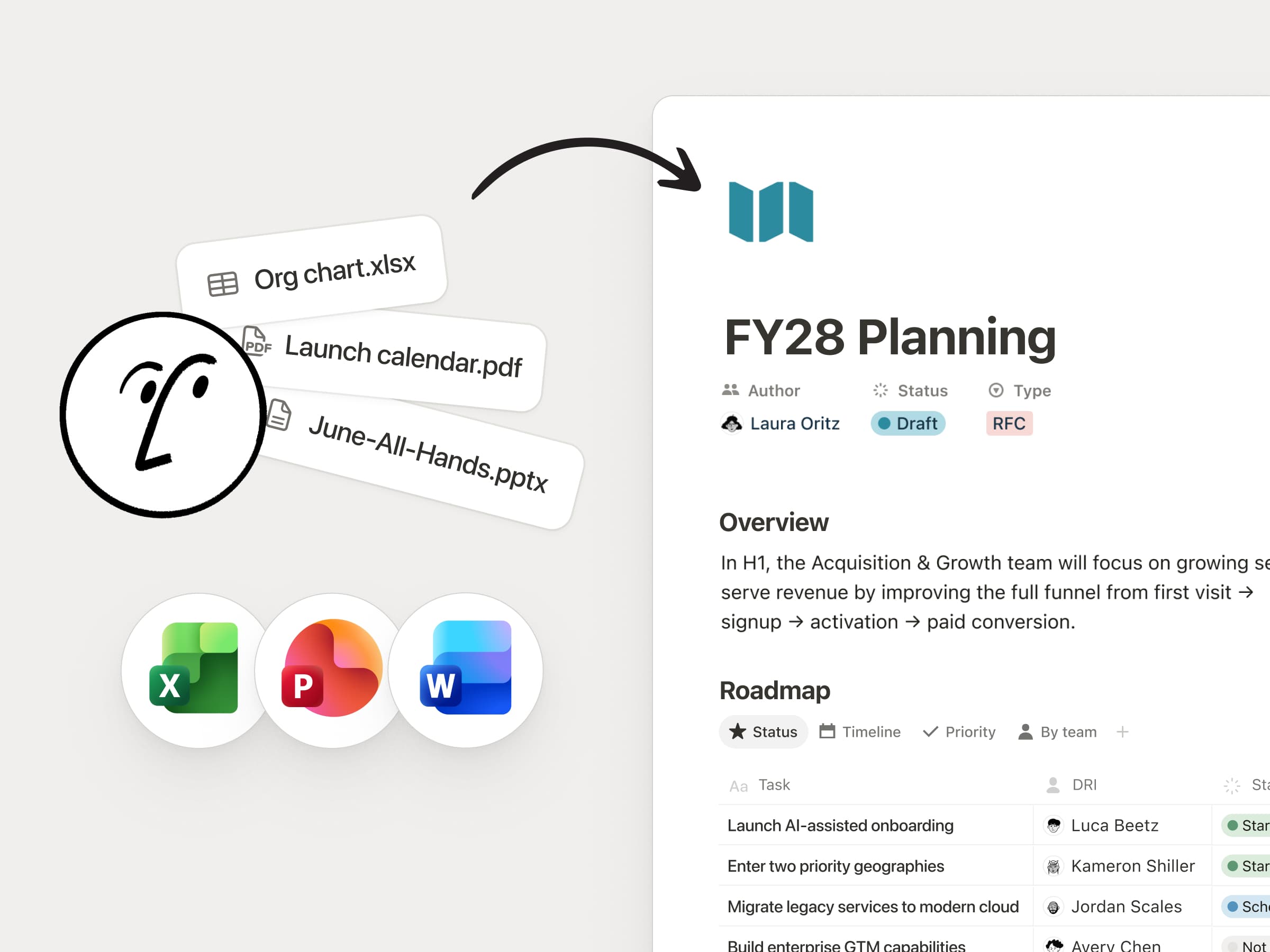
APIを利用して、あらゆるデータソースをNotionデータベースに同期します。チームでサーバーを管理する必要はありません。Notionの新しいデータベース同期機能は、Notion側のインフラで稼働するワーカーによって支えられています(詳細は後述します)。Zendeskからチケットを取り込み、エージェントに修正案の一次回答を作成させます。Salesforceから顧客データを同期し、エージェントに詳細なレポートを作成させます。StravaとSpotifyのデータを連携させ、最高のランニング用プレイリストを構成します。必要なコンテキストが、これからはNotion上で共存できます。デモを視聴する →
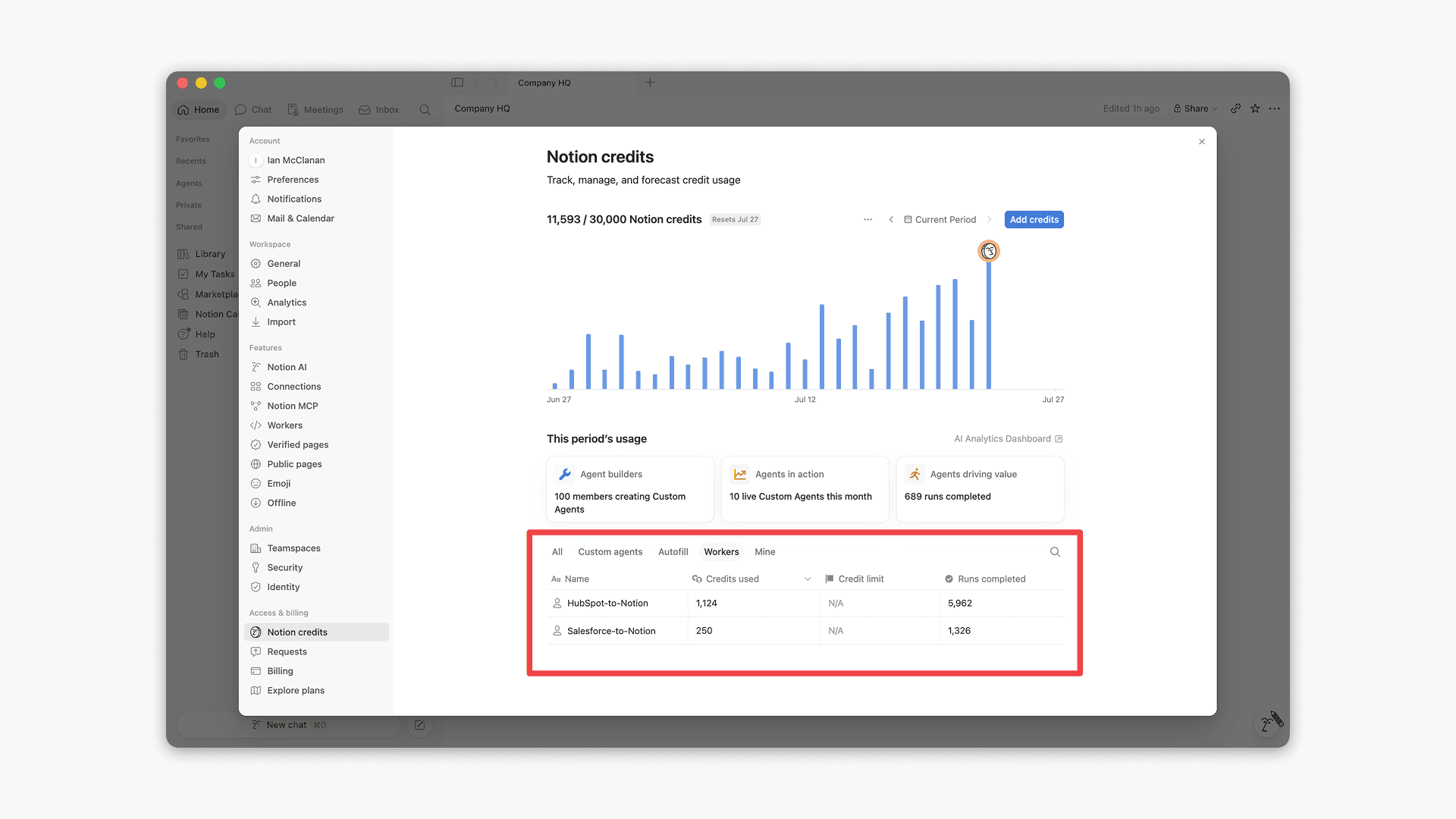
ワーカーは、Notionとの深い連携を構築するためのツールを提供してくれます。これは、以前は存在し得なかったものです。毎晩実行されるワーカーがあり、Googleドライブ内の編集不可能なPDFを同期して、整理されたNotionデータベース内の完全に編集可能な豊富なコンテンツのページに変換します。これにより、チームとエージェントがこのデータを活用できるようになり、大幅な時間の節約につながっています。
エージェント用のカスタムツールを構築する(ベータ版)
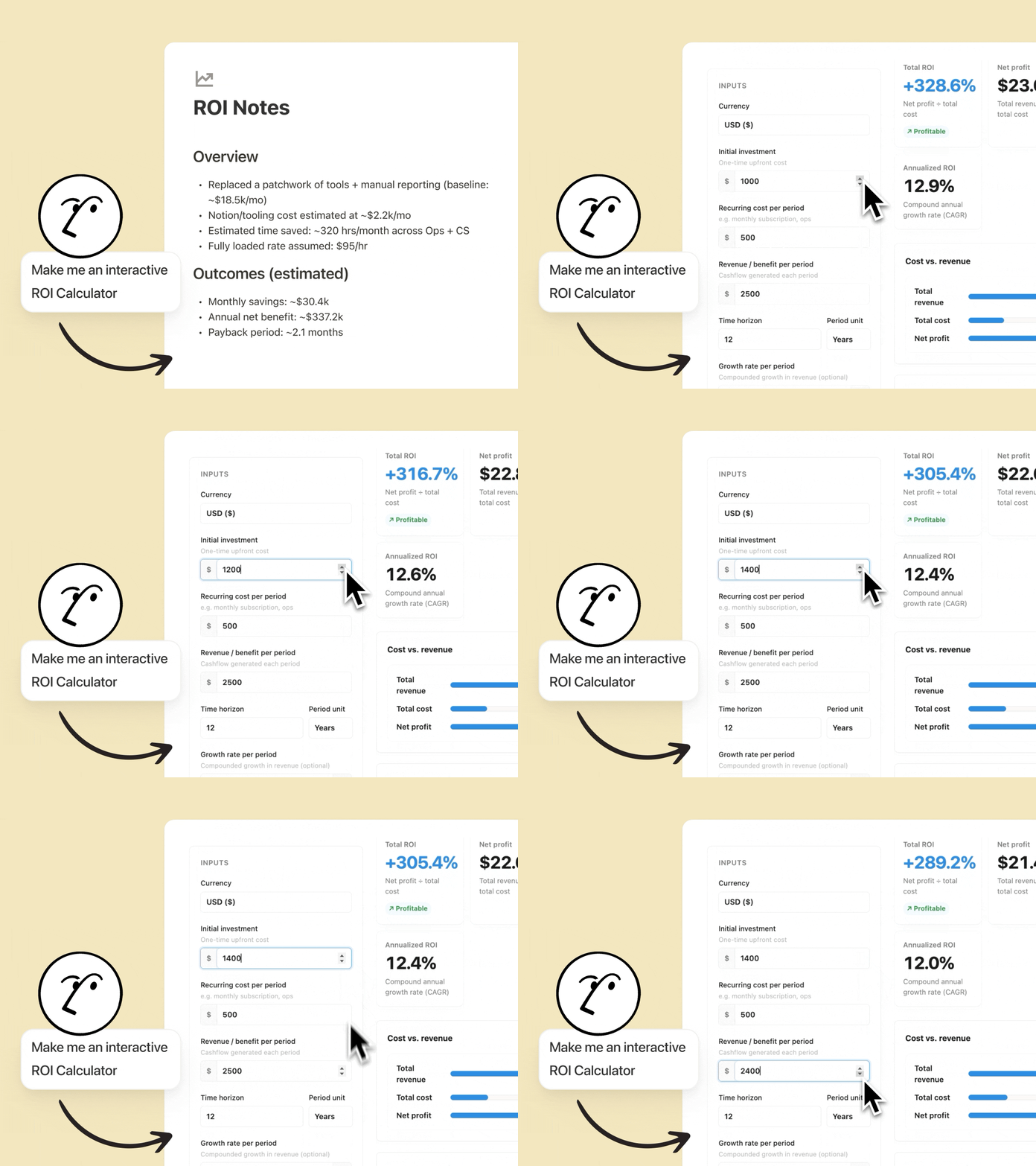
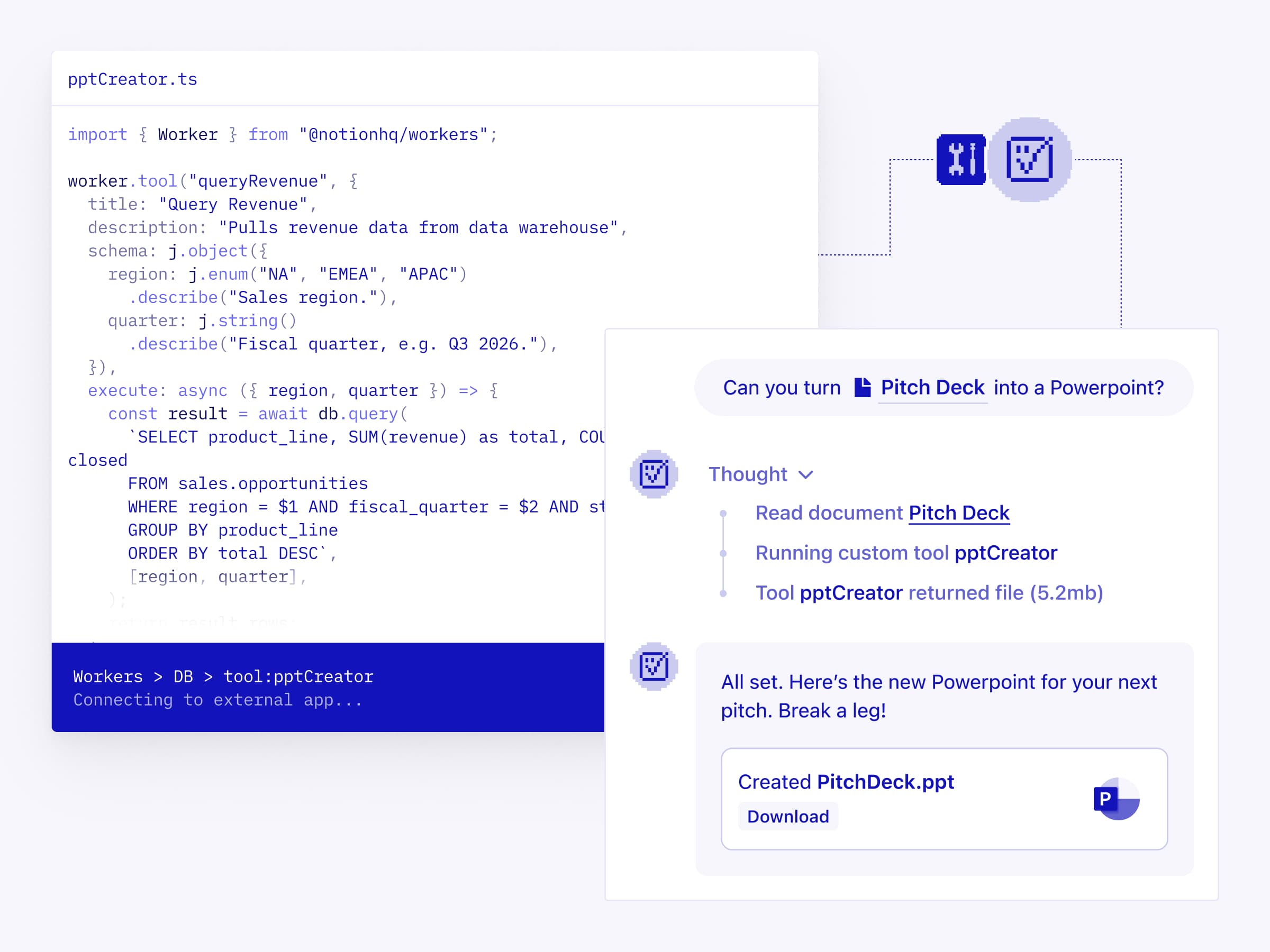
NotionやMCPが単体ではカバーしていない機能を、カスタムエージェントに持たせることができます。独自のロジックをコードで記述し、ワーカーとしてデプロイします。決定論的に動作するため、LLMによる推論よりも信頼性が高く、トークンコストもごくわずかで済みます。アセットの生成、内部データのクエリ、他アプリでのアクション実行、これらすべてを自動化できます。ドキュメントを読む →
私はNotionワーカーをインフラだと考えています。データの自動入力から更新、システムのセットアップまで、必要な工程をすべて担ってくれます。
どこからでもNotionのワークフローをトリガーする(ベータ版)
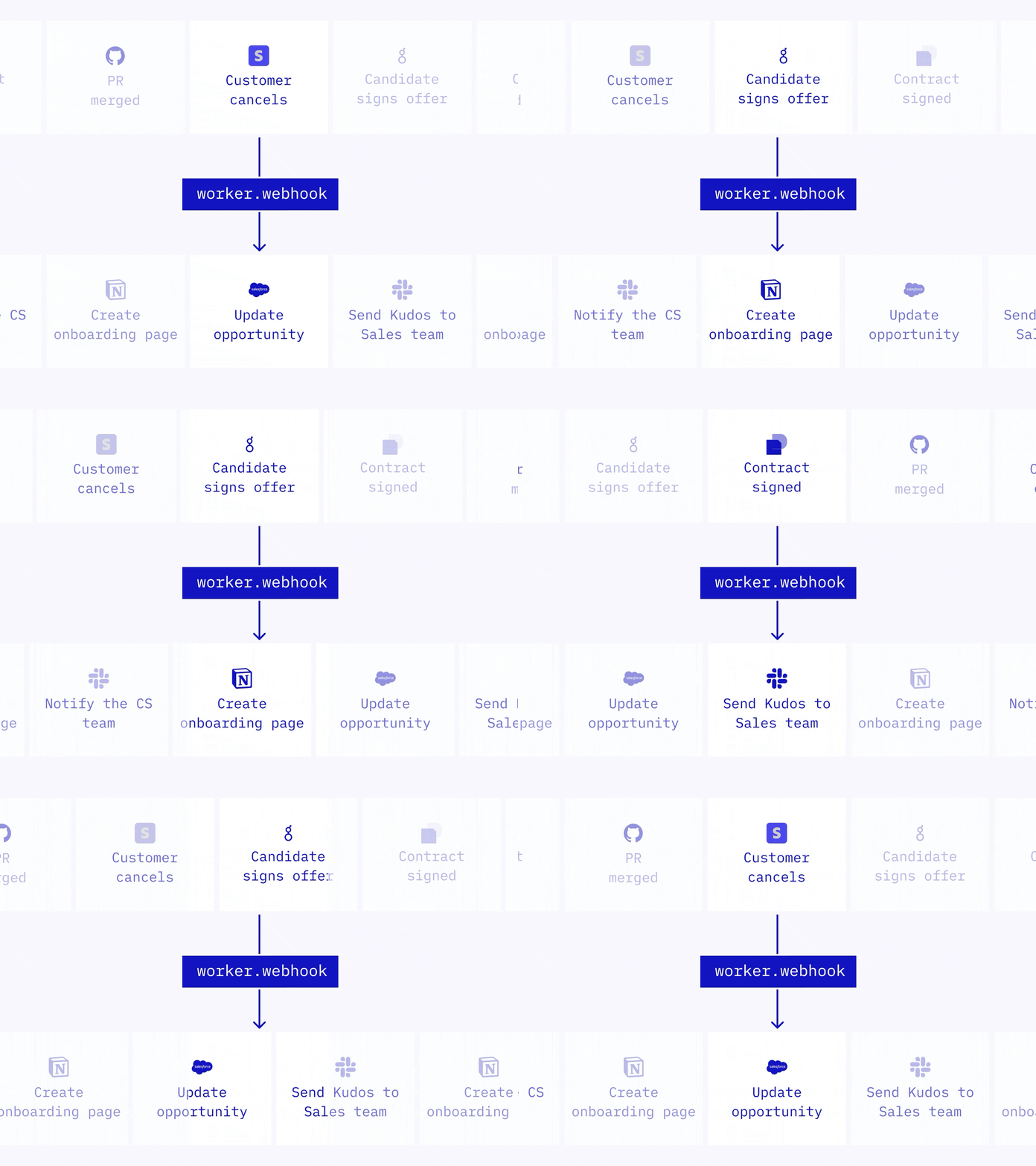
かつてWebhookは一方通行の仕組みでした。Notionから他のアプリを起動することはできても、外部からNotionを動かすことはできなかったのです。しかし、あらゆるアプリからNotionを直接起動できるようになりました。ワーカーがWebhookを受信し、ロジックを実行、Notion内でのアクションや他のAPIの呼び出しを行います。PRマージ後のタスククローズ、サブスクリプションの変更に合わせたCRMの更新、内定承諾時のオンボーディングドキュメント作成といった活用が可能です。ドキュメントを読む →
私たちが「ワーカー」と名付けた新しいプリミティブが、データベースの同期やエージェントツール、Webhookトリガーといった仕組みの原動力となっています。Notionワーカーは、カスタムコードを実行するためのホスト型ランタイムです。そのため、自分でサーバーを立てて管理しなくても、Notionの機能を拡張できます。あなた(とコーディングエージェント)がコードを書き、CLIでデプロイ。実行はセキュアなサンドボックス環境で行います。ベータ版をご利用中は、無料でワーカーをお試しいただけます。2026年8月以降、ワーカーの実行にはNotionクレジットが必要になります。ドキュメントを読む →
ワーカーによって他ツールのAPIに直接連携し、手作業だったデータの引き継ぎプロセスをすべて自動化できます。Notionがツール同士をつなぐ接続層となり、ツール間に存在するあらゆるギャップをワーカーが埋めてくれます。
開発者とコーディングエージェント向けに構築されたNotion CLI
Notionコマンドラインインターフェース(CLI)は、開発者とコーディングエージェントがプログラムを介してNotionを自在に操作するための、新しいインターフェースです。ワークスペースへのサインイン、Notion内の情報の読み取りや操作、ワーカーの構築とデプロイ、さらにはチームのニーズに合わせたNotionの拡張などに使用できます。To install, run curl -fsSL https://ntn.dev | bash.デモを視聴する →
Notionエージェントをあらゆるアプリで使用する(アルファ版)
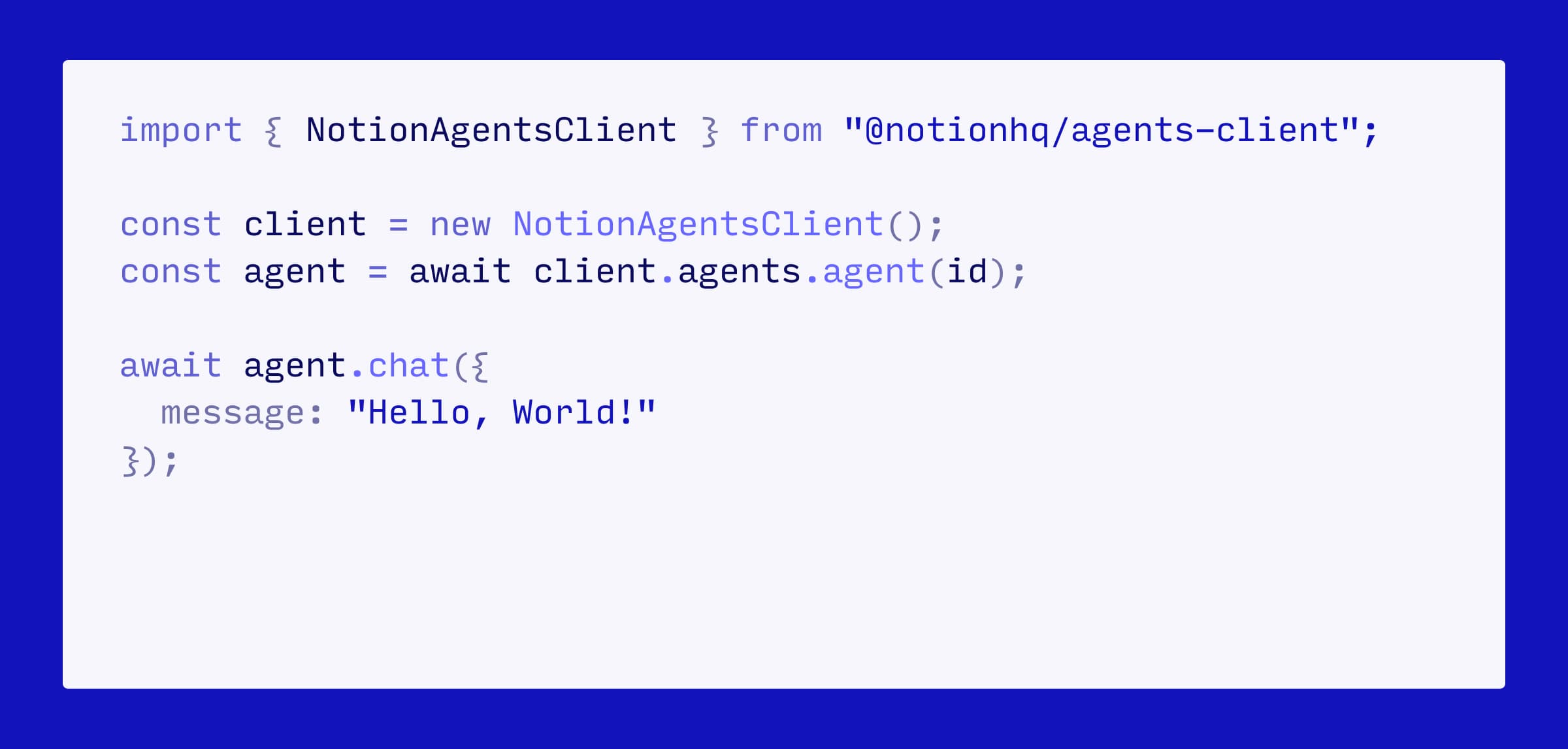
まもなく、Notionエージェントは、Notionの外でも利用可能になります。NotionエージェントSDKを使えば、他のツール内にエージェントを埋め込めます。CRMのボタンをクリックするだけで、案件レポートを作成できます。ワークスペース内の検証済みナレッジを基に、MS TeamsやDiscordで多発する質問に自動で回答できます。また、顧客のコンテキストをAmplitudeやHexといったデータ分析ツール、さらにはあらゆるダッシュボードに取り込むこともできます。エージェントSDKの順番待ちリストに登録する →
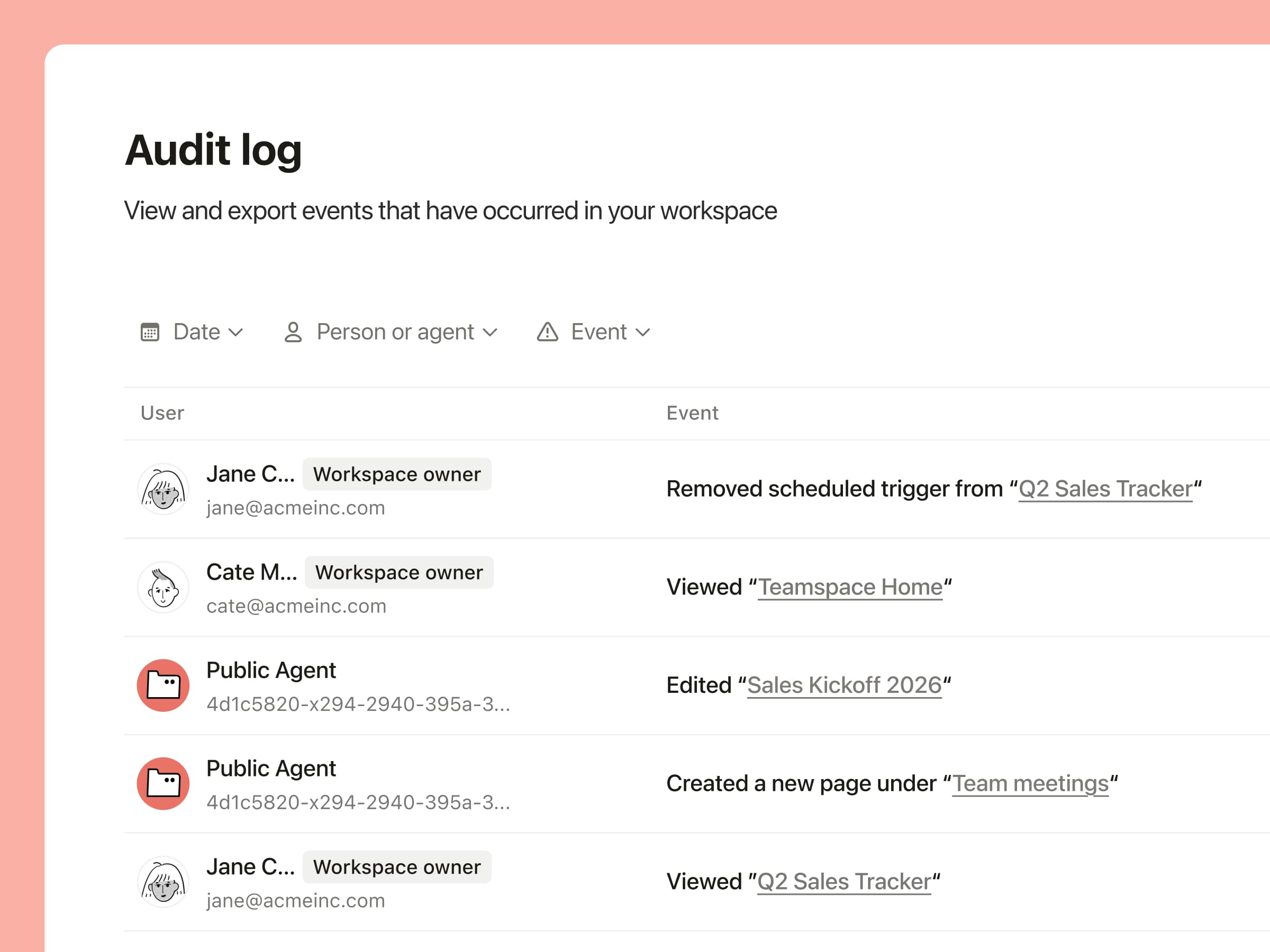
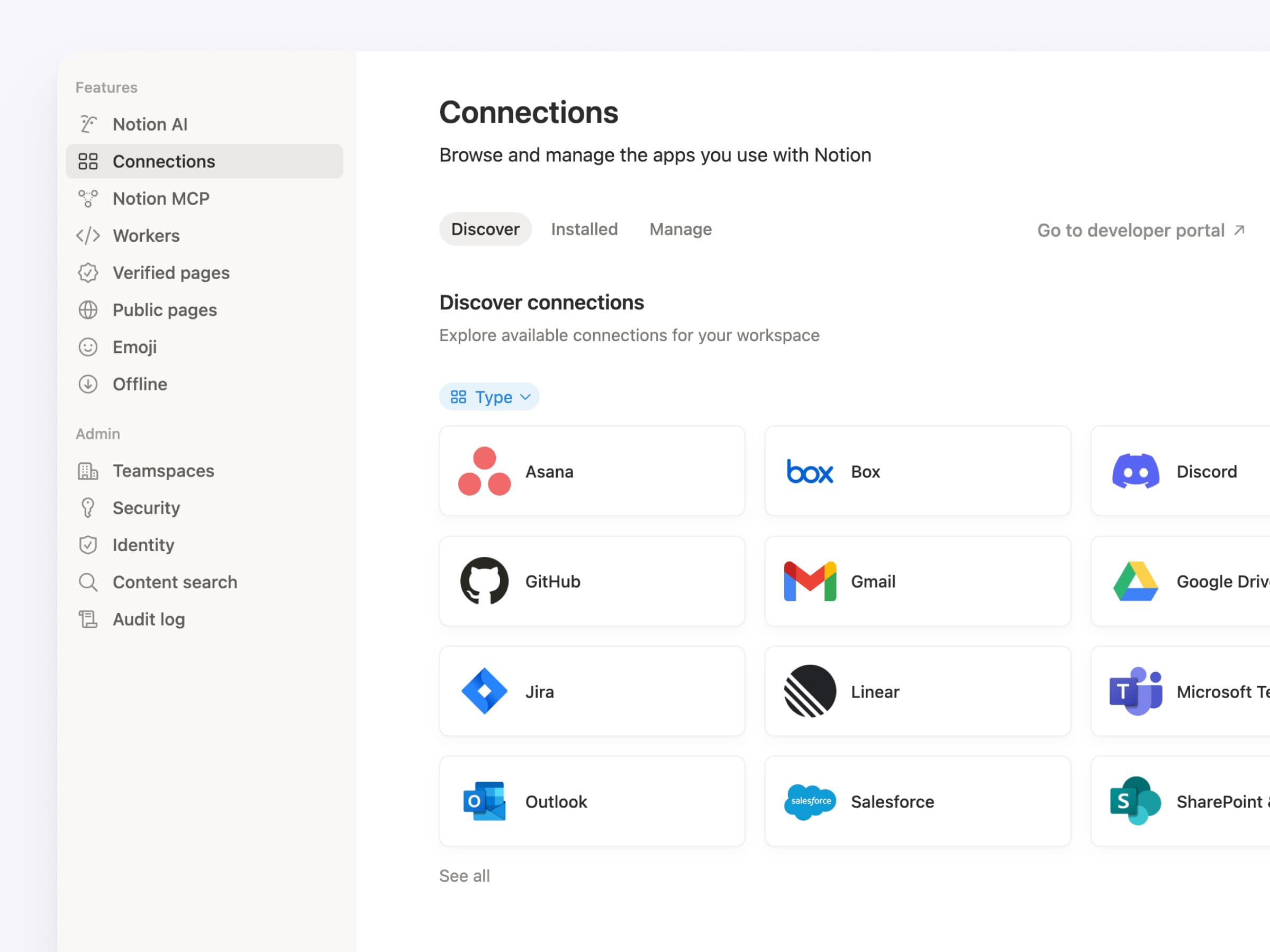
ワークスペース設定内の「コネクト」タブをアップデートしました。すべてのコネクトを一箇所に集約し、チーム全体で利用可能なリソースをひと目で確認できるようにしました。個人、ワークスペースごとのコネクト、API認証に使用する個人用アクセストークン、内部API接続がここに含まれます。さらに、各アプリのリスティングには、対応するすべてのコネクトタイプがまとめて表示されます。設定 → コネクトから確認できます(または、こちらをクリックします)。
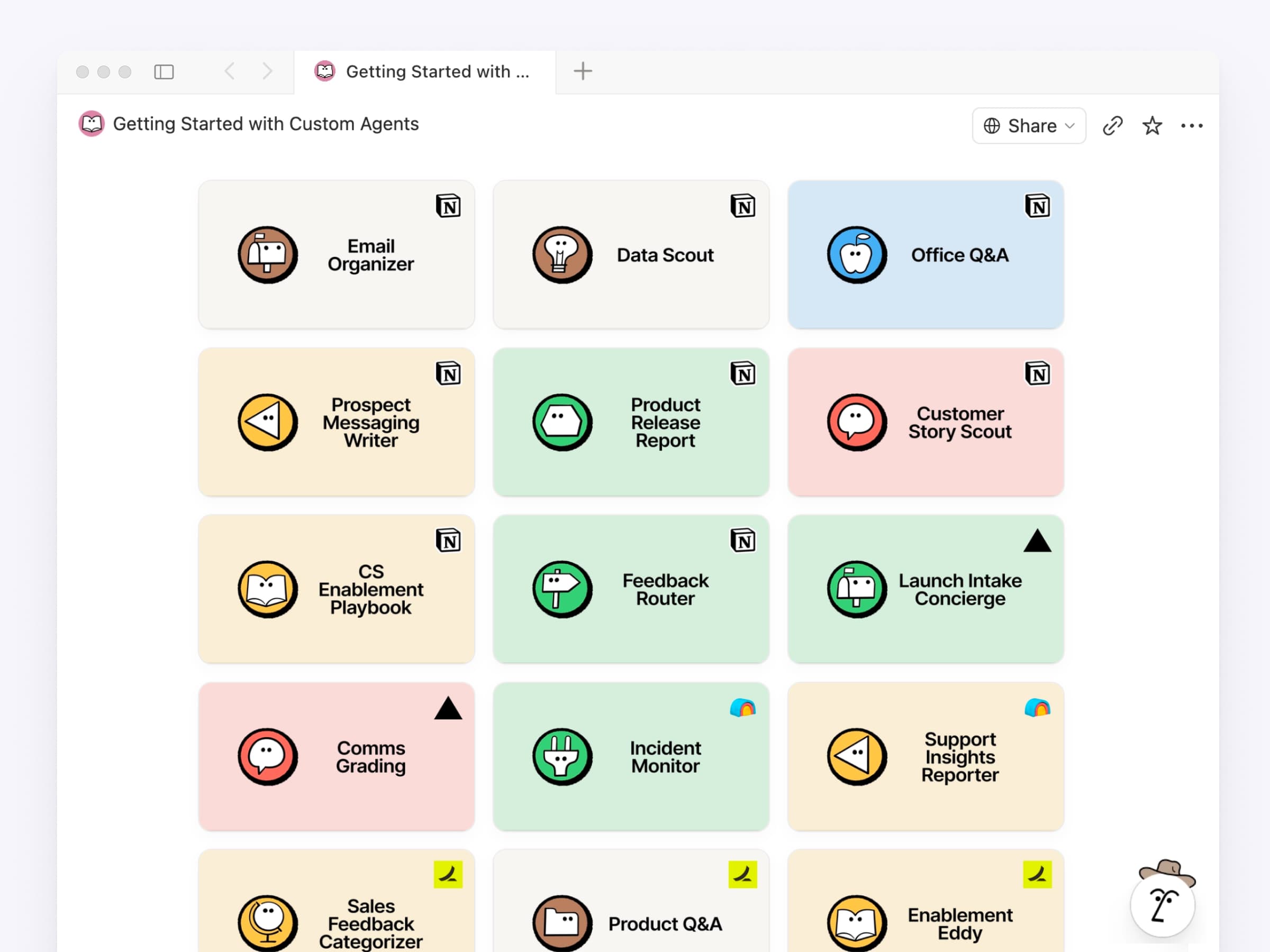
どのようなエージェントを作るべきかという判断は、開発において最も苦労する部分かもしれません。そこで、RampやClay、Vercelなどによる最高のエージェント事例を一つのライブラリにまとめました。各事例には、必要なリソース(データベース、ページ、ツール)のチェックリストと、コピー&ペーストで使えるプロンプトのサンプルが用意されています。まずは一つ選んでみてください。数分でセットアップしていただけます。コレクションを参照する →
他にも、開発者に重宝しそうなアップデートを行いました
マークダウンAPI:すでにご存知かもしれませんが、Notionページの読み書きをマークダウン形式で行えるようになりました。エージェントの標準的な思考プロセスに合わせた設計です。
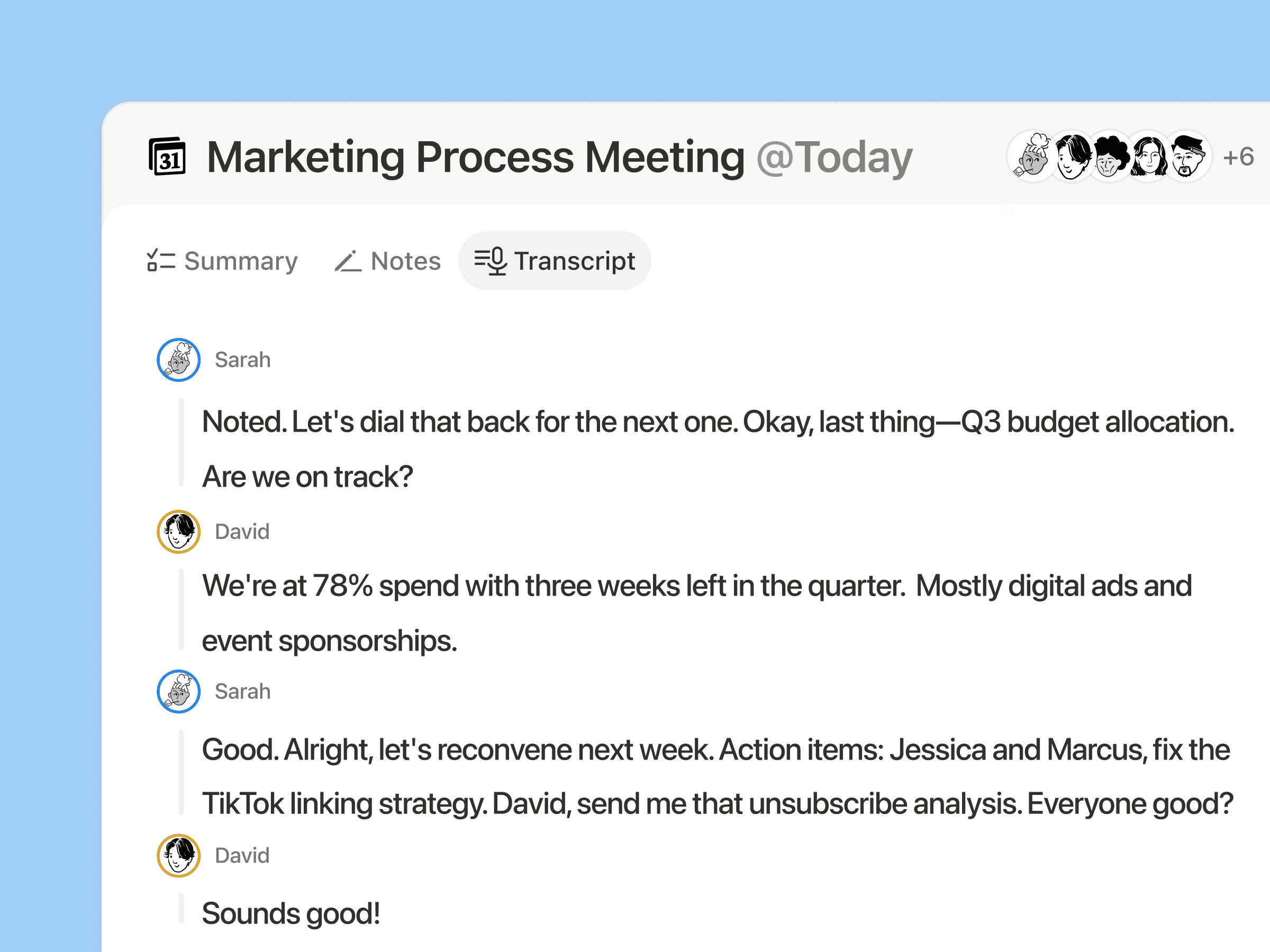
Notion MCP:ミーティングノートやブロックコメントに対応しました。さらに、データベースの作成・更新時のトークン効率が91%向上しています。
Notion API:ワークスペースオーナーに限らず、すべてのメンバーがコネクトを構築できるようになりました。あわせて、ワークスペース単位のOAuthや個人用アクセストークンの使用にも対応しています。リリースを見る →
開発者ポータル:app.notion.com/developersが、専用ポータルになりました。コネクトやトークンの作成、管理、リスティングをここで行えます。
開発者向けドキュメント:ドキュメントを再構築・効率化し、明確さを改善しました。内蔵のAIアシスタントが、必要な情報を素早く見つけるお手伝いをします。
これらはNotion開発者プラットフォームにとって、まだ始まりに過ぎません。あらゆるデータ、ツール、エージェントが、Notionのインフラストラクチャ上で動き出します。皆様が何をビルドされるのか、今から楽しみでなりません。
追記:「Make with Notion:開発者プラットフォーム」では、ここでご紹介した内容に加え、さらに多くの情報を公開しています。基調講演を視聴する →
追記②:他のチームがすでに何を構築しているか、気になりませんか?Every、Brainlabs、Vercelが、Notionの開発者プラットフォームを本番環境でどのように活用しているか、ぜひご覧ください。
追記③:最後にもう一点、お知らせしたいことがあります。シンプルテーブルで、スプレッドシートと同じようにセルを結合できるようになりました。これもまた、非常に楽しみなアップデートです。